Context
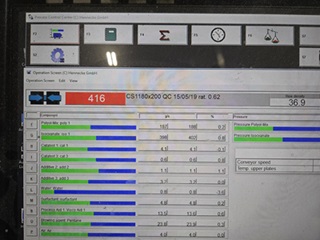
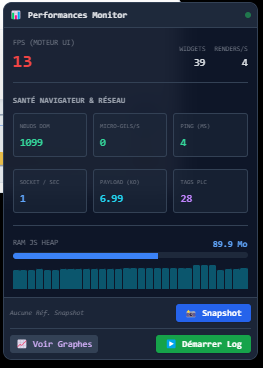
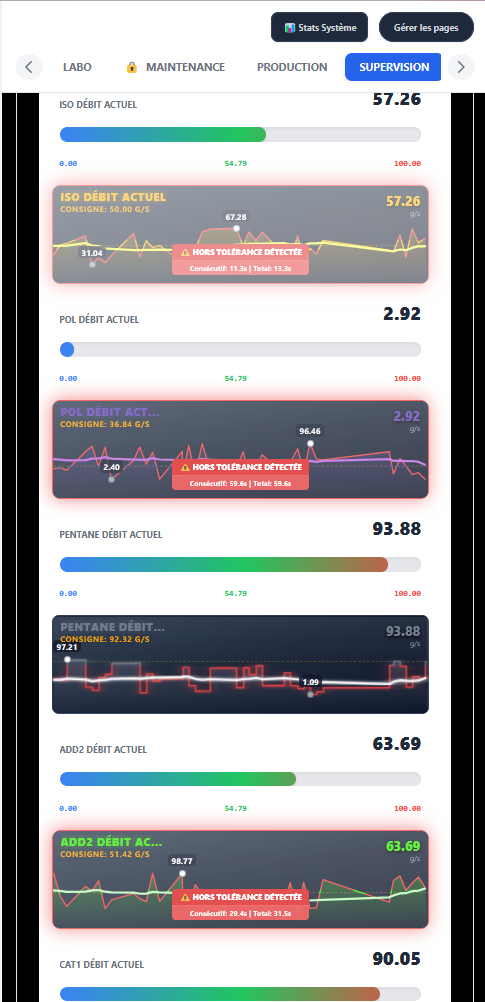
For five years now, in the factory where I work, production orders have been sent to the production line through manual operator input. Five years of potential data entry errors, non-conforming products, and daily friction that everyone has eventually come to accept as inevitable. Not to mention the slowdowns that had gradually crept into our supervision systems as updates accumulated and production tools were added — values were slow to refresh.
As an automation engineer and maintenance technician for over twenty years, I naturally look for concrete solutions. Before going it alone, I had tried the official route: the parent company has a team of engineers specialised in this kind of topic. We had direct contact with them, shared all the data, programs and specifications. A year later — nothing. Probably a matter of priorities, staff turnover, or simply the fact that they mostly work on recent Siemens environments rather than ageing Schneider installations that weren't really in their wheelhouse... or perhaps they were looking for a more global vision of replacing PLCs and supervision systems with no one really knowing where things stand. So I decided to tackle the problem myself.
To do that, I needed two things:
Production order files are automatically exported to a server as text files.
Text parser · known groundTransfer this formatted data to the supervision workstation, which communicates with a Schneider PLC.
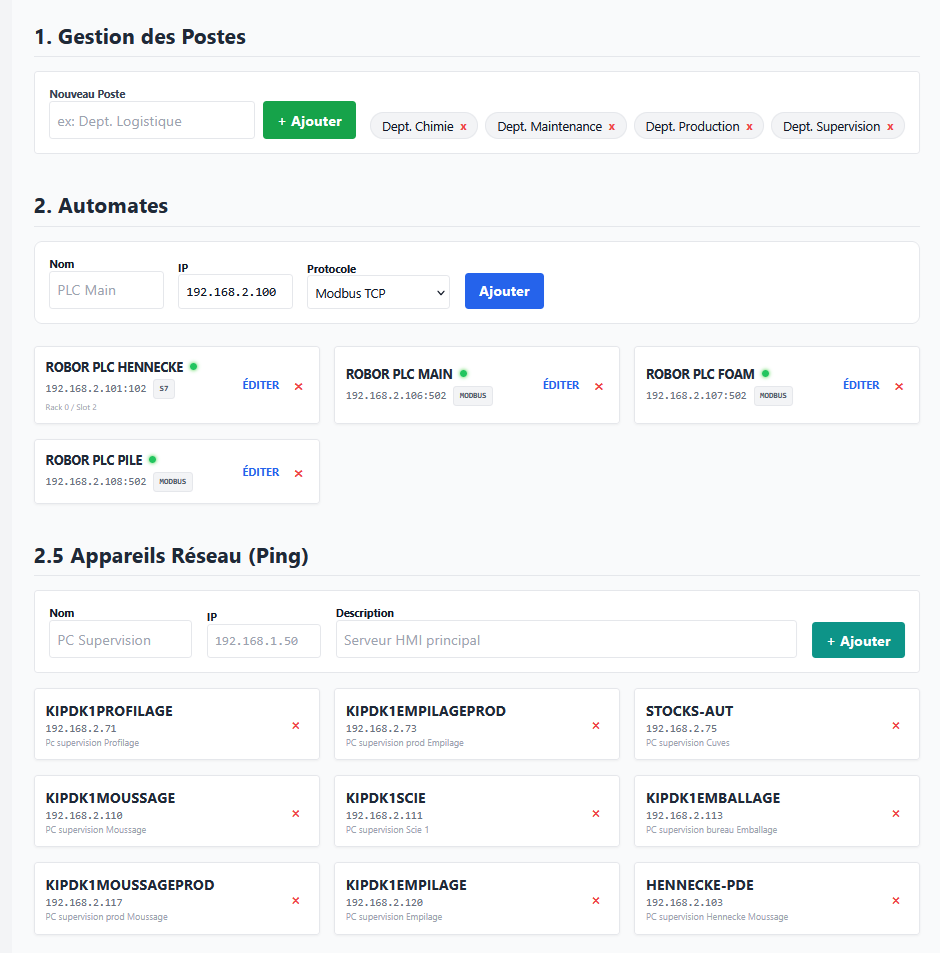
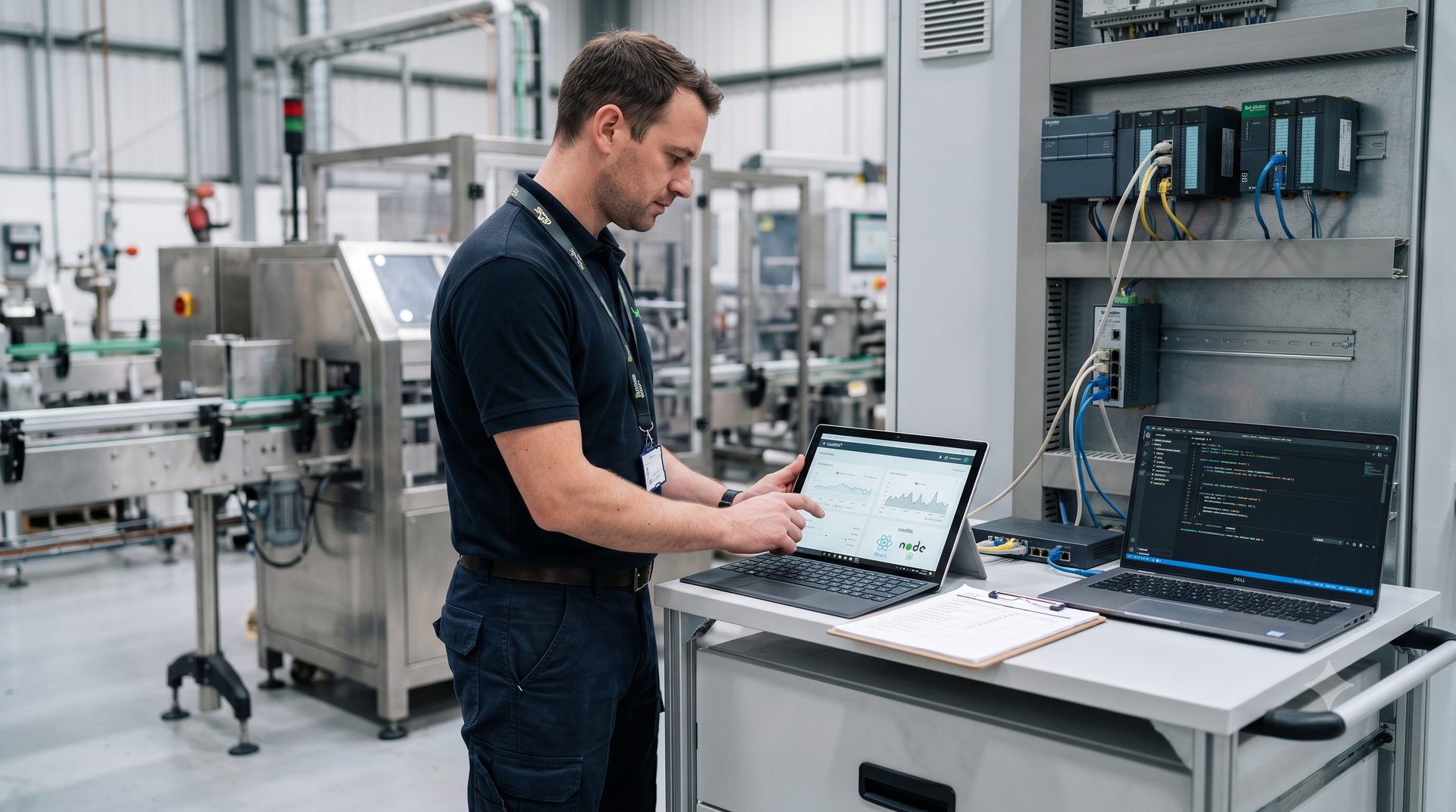
PC <> Schneider Premium PLC communication · uncharted territoryRather than using the classic industrial approach for this type of application — a compiled Delphi or C++ program interfaced with the PLC — I wondered whether I could use more open and modern tools: Node.js on the server side, React on the interface side, as these were trending tools I had started using the previous year on a personal maintenance management project.
The motivation: solving a concrete problem, and discovering there was something bigger to build
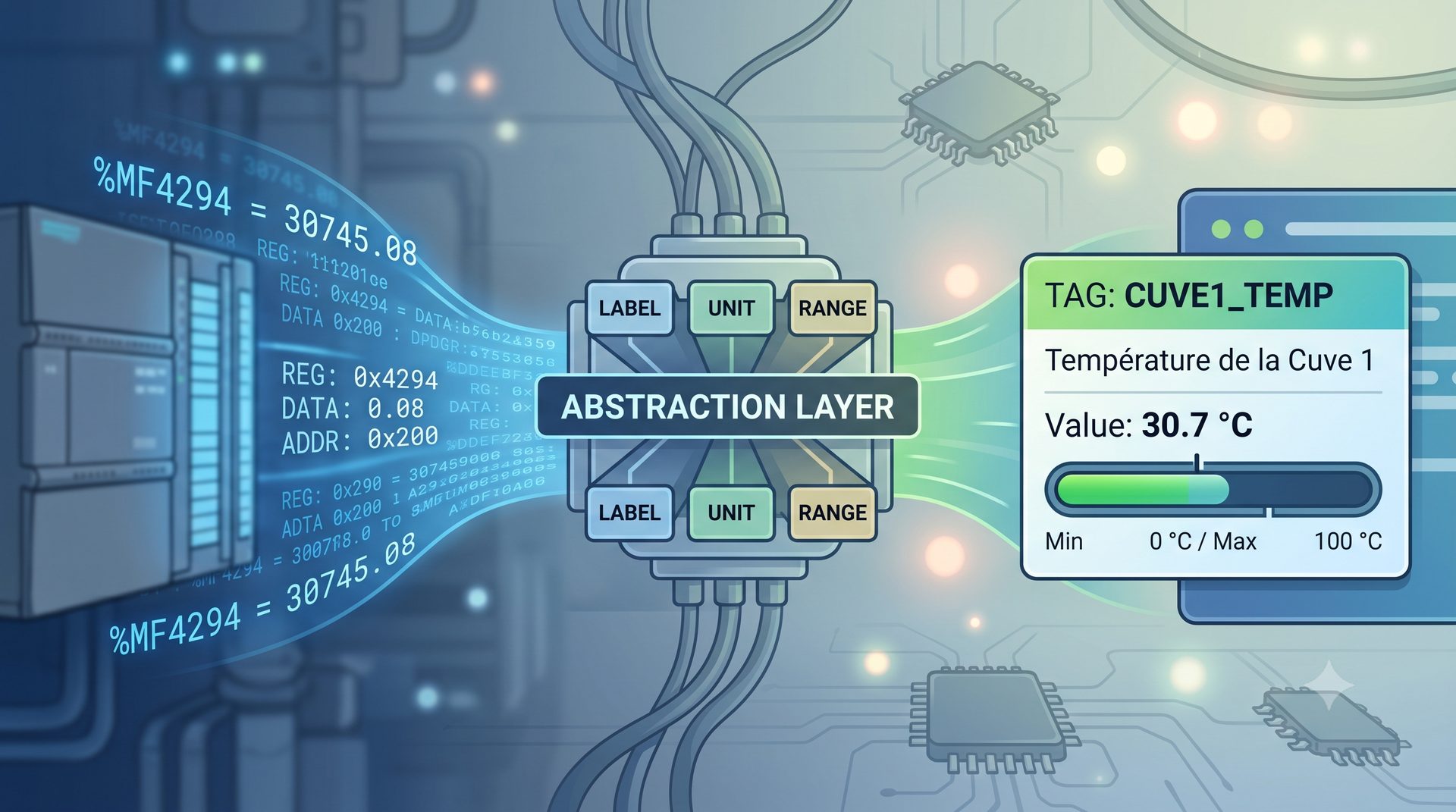
Two hours of research later, what I thought would take two weeks came down to a single realisation: "But is that all there is to it?" From my personal computer, with a small rudimentary interface, I could directly read and write memory words %MWxxxx on a Schneider Premium PLC. And from there, everything fell into place very quickly in my head.
"Why not?" — If I can talk to a PLC from my PC in a few hours, what could I build with a few weeks of work?
I was now convinced that I could do something bigger. Not just solve this data entry problem — but tackle a frustration I had carried for years in my profession: industrial supervision tools cost a fortune, run on locked proprietary platforms, and whenever we need to replace a PC with a higher OS version, you have to migrate to a new version of the HMI software with licences to update, hours of supervision program migration to plan, licensing tools that require as much training as the software itself — and whenever you want to customise something beyond what the vendor has anticipated, it's either impossible or a week's work in a 1990s language. I've used WinCC, InTouch — solid tools, but closed, and often out of reach for smaller companies due to their cost.
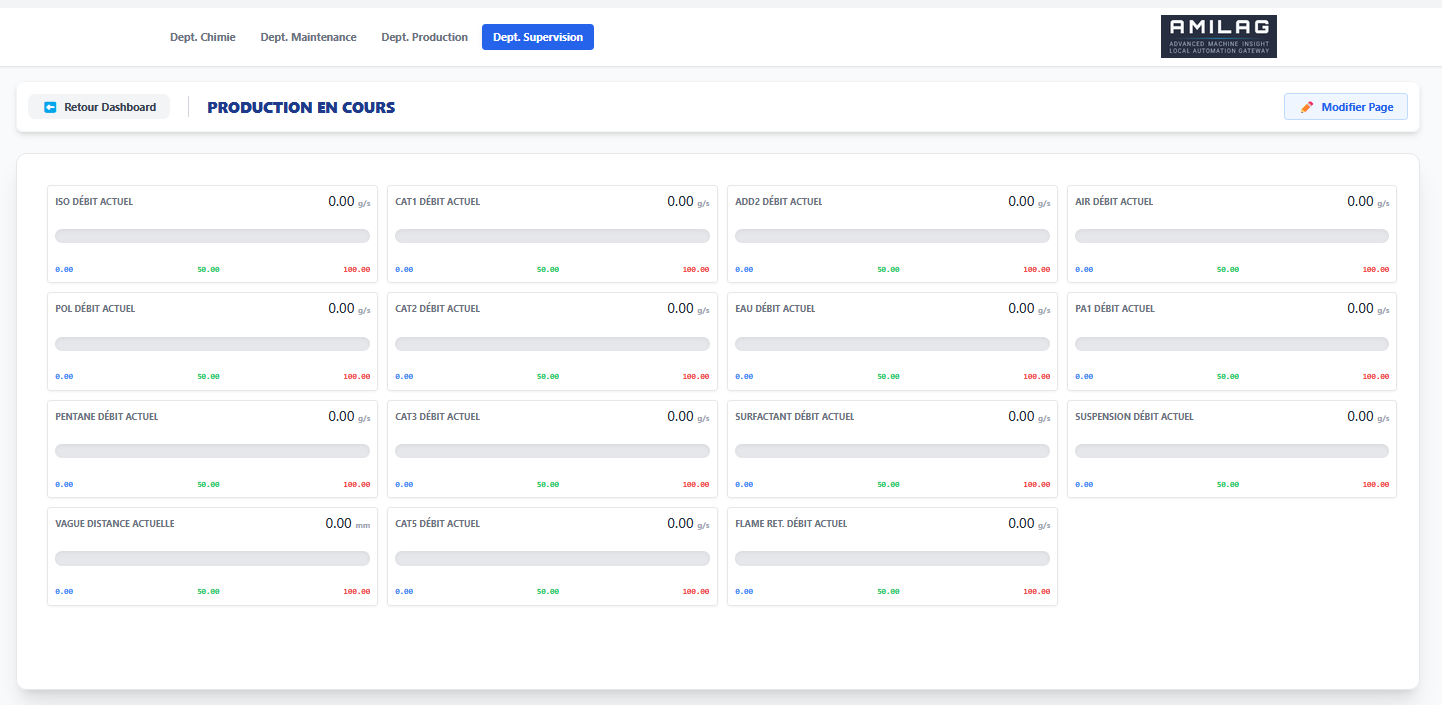
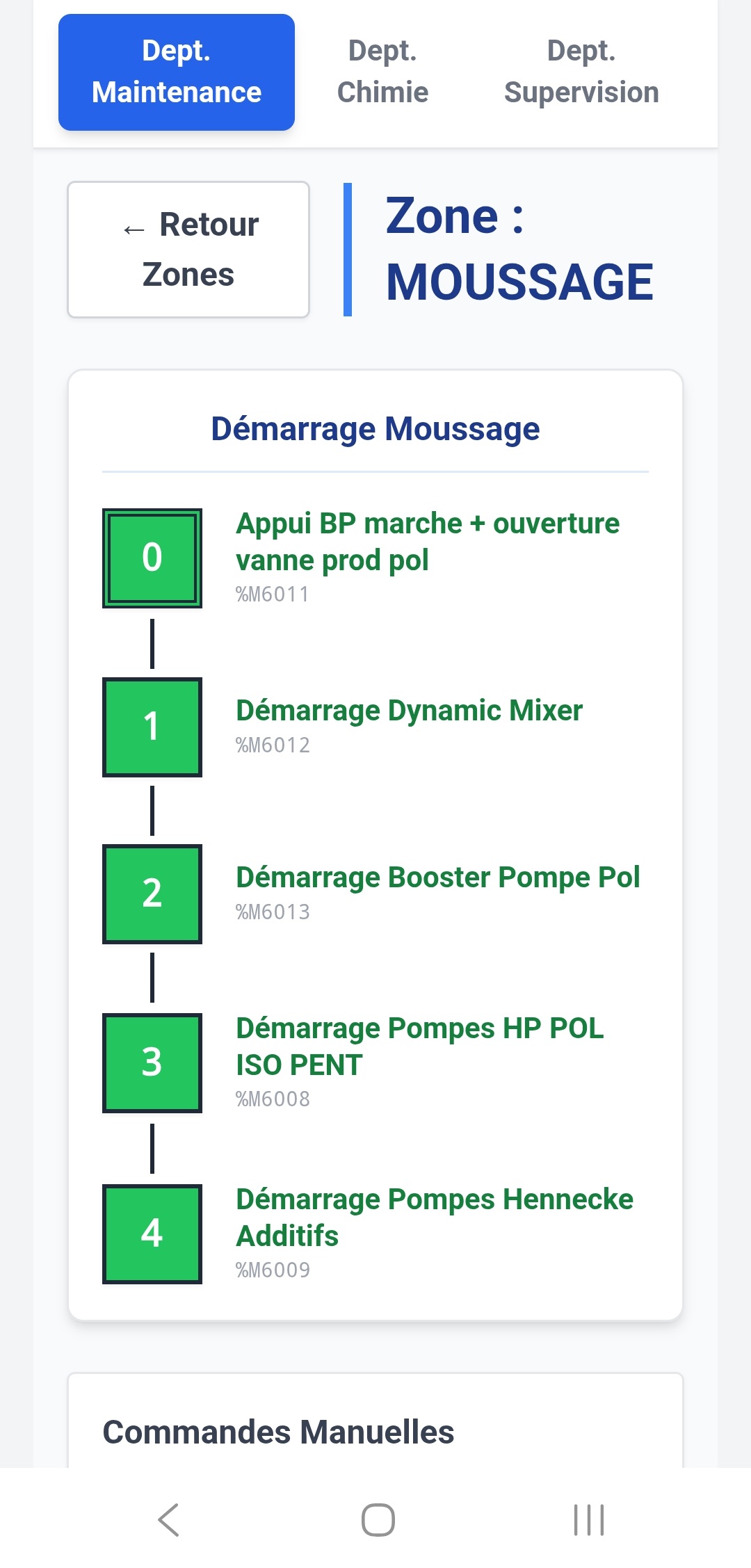
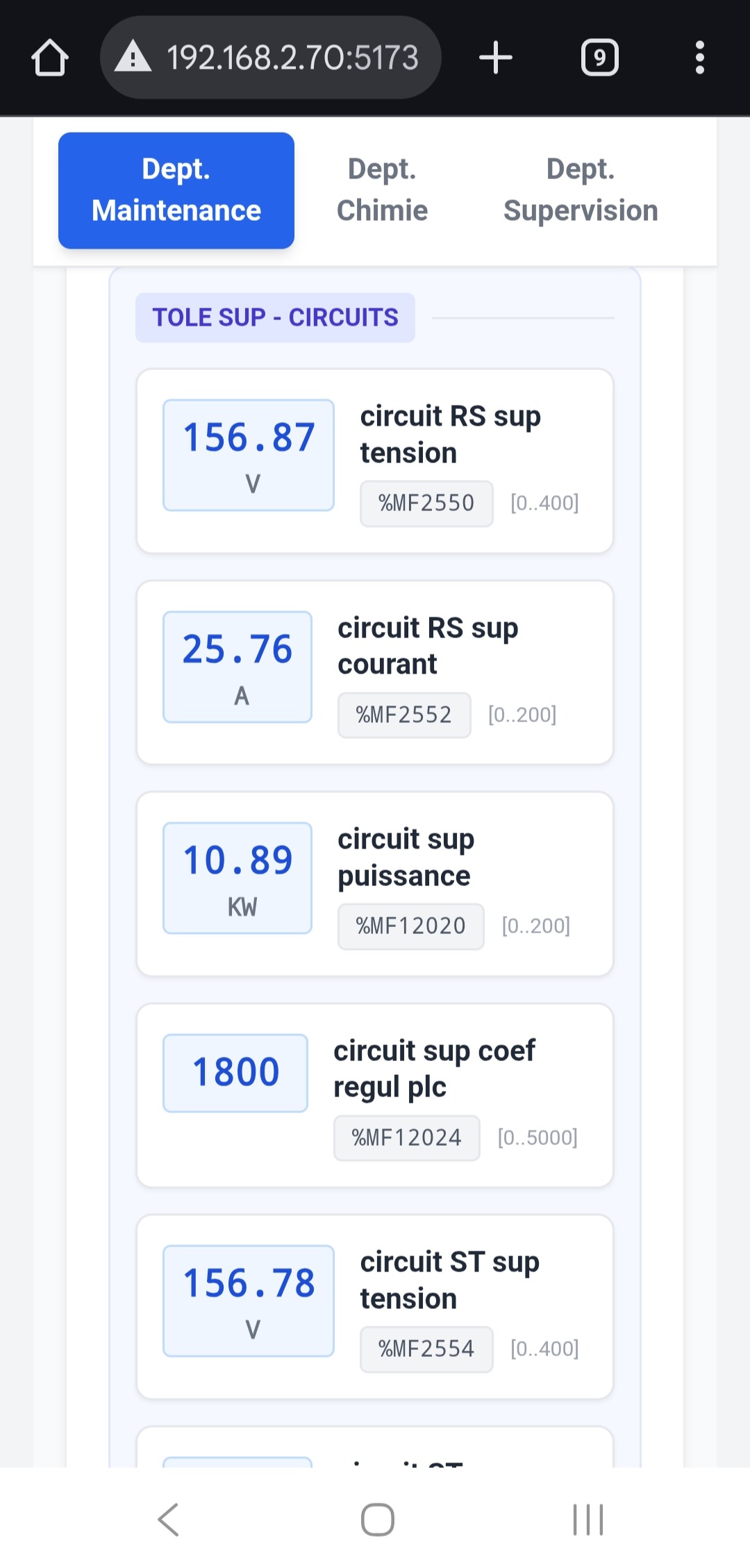
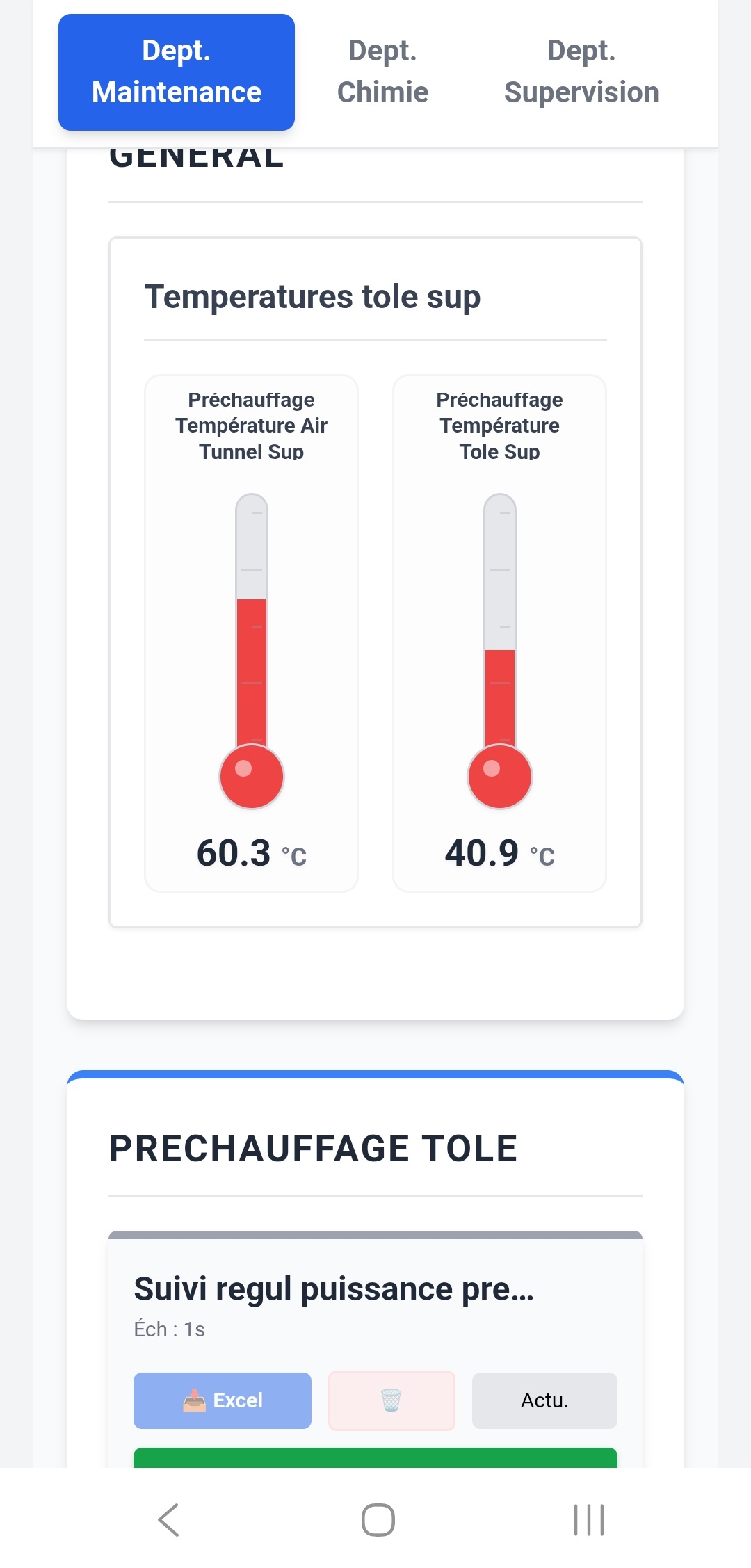
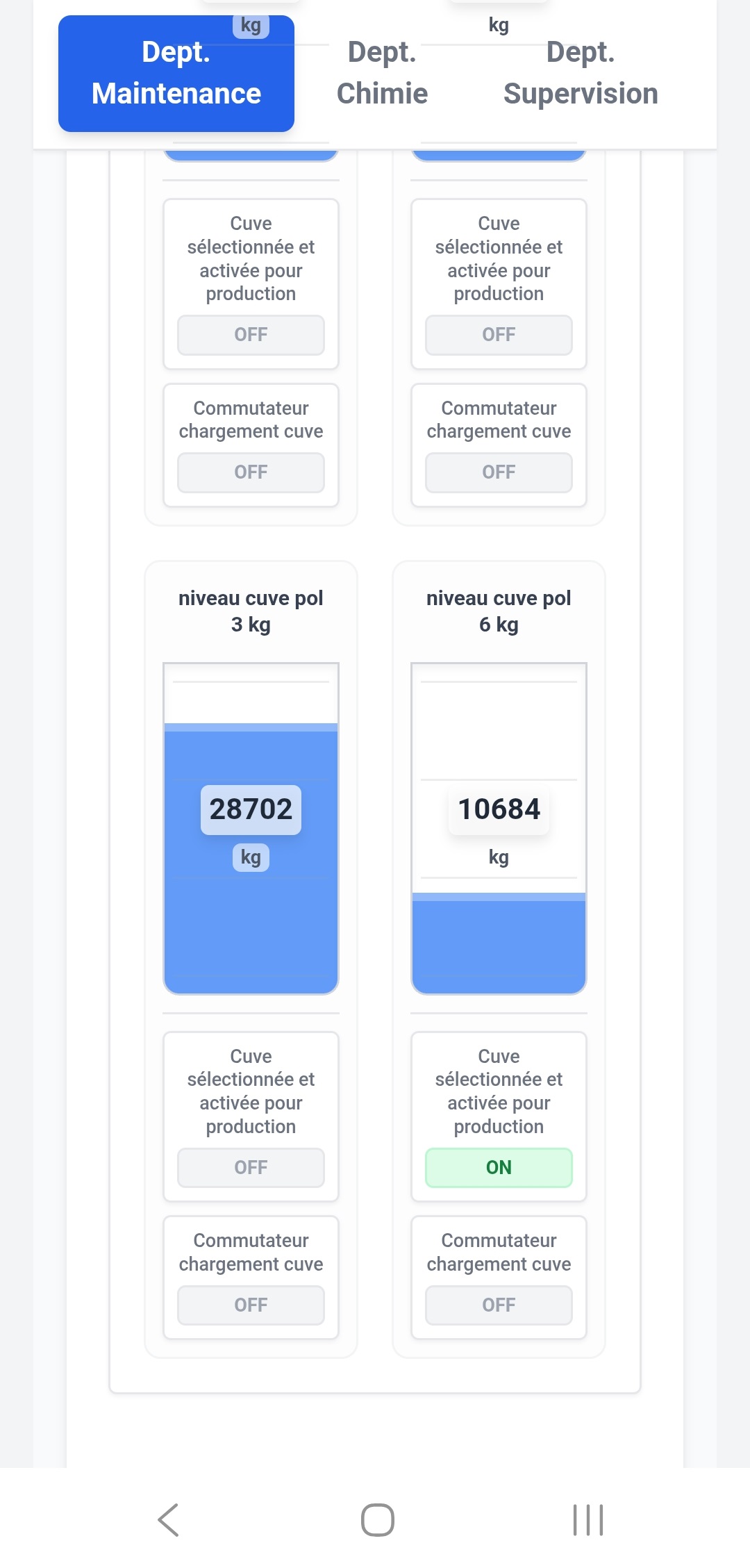
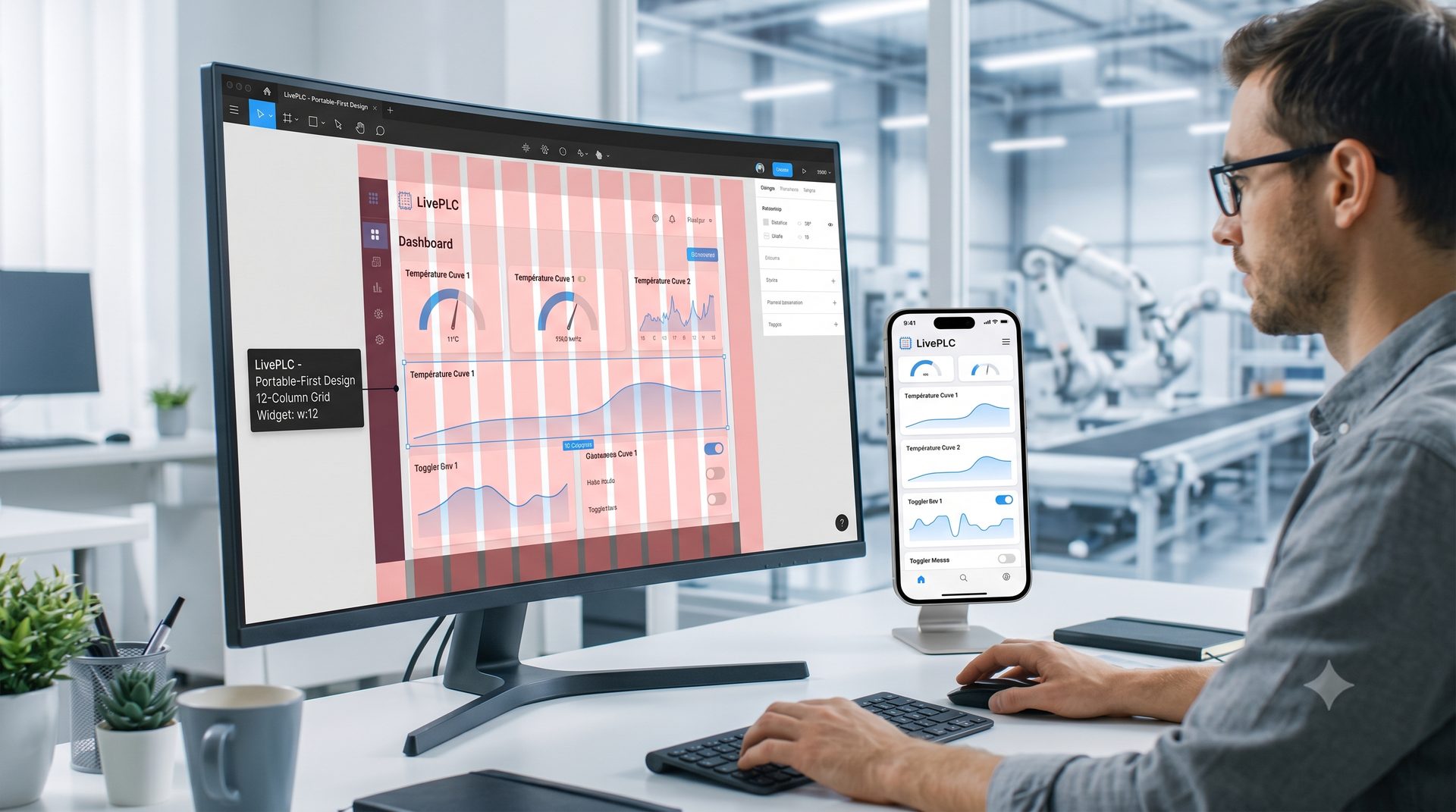
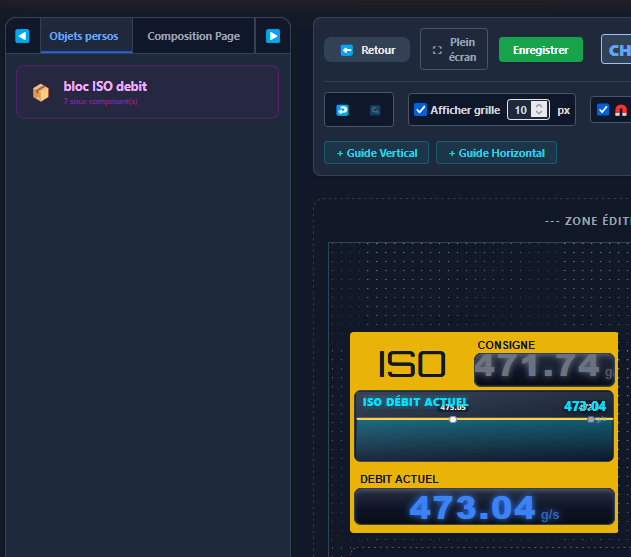
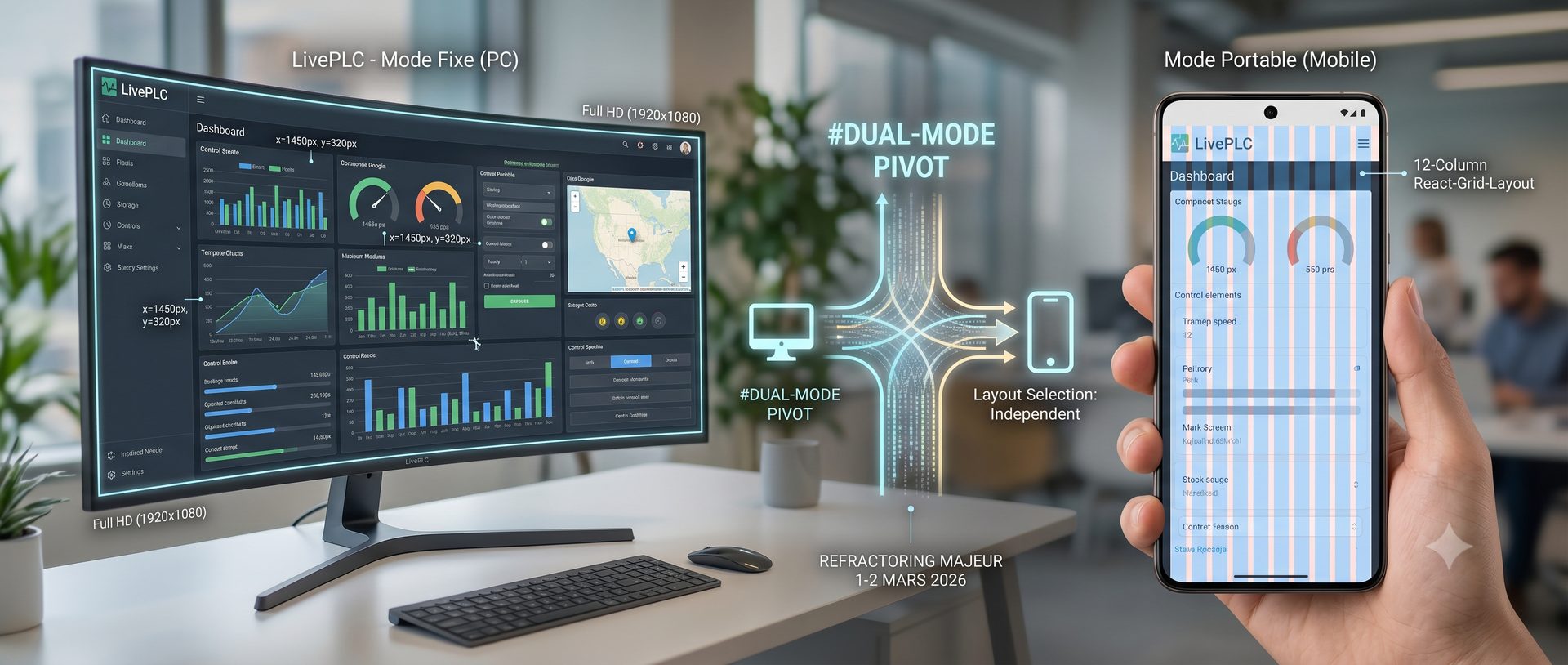
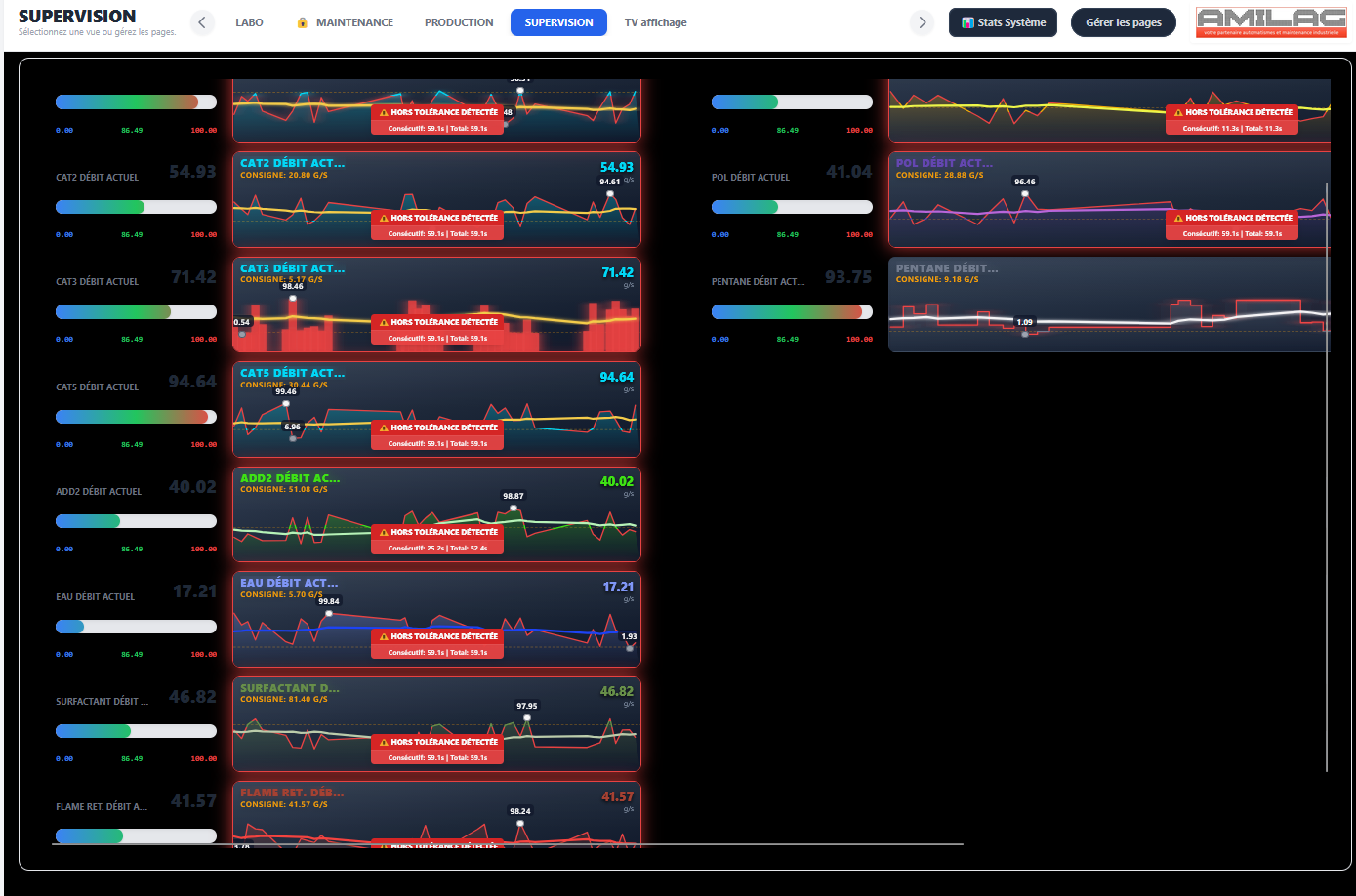
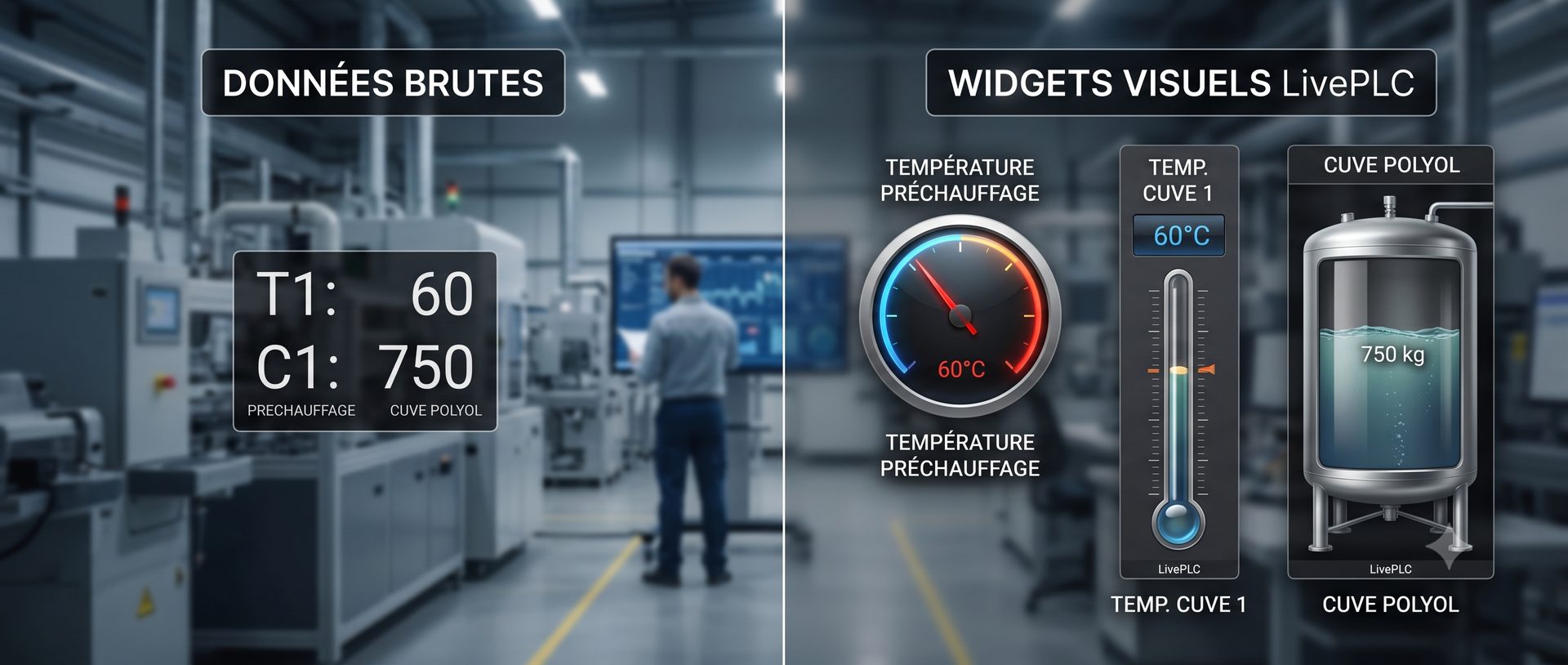
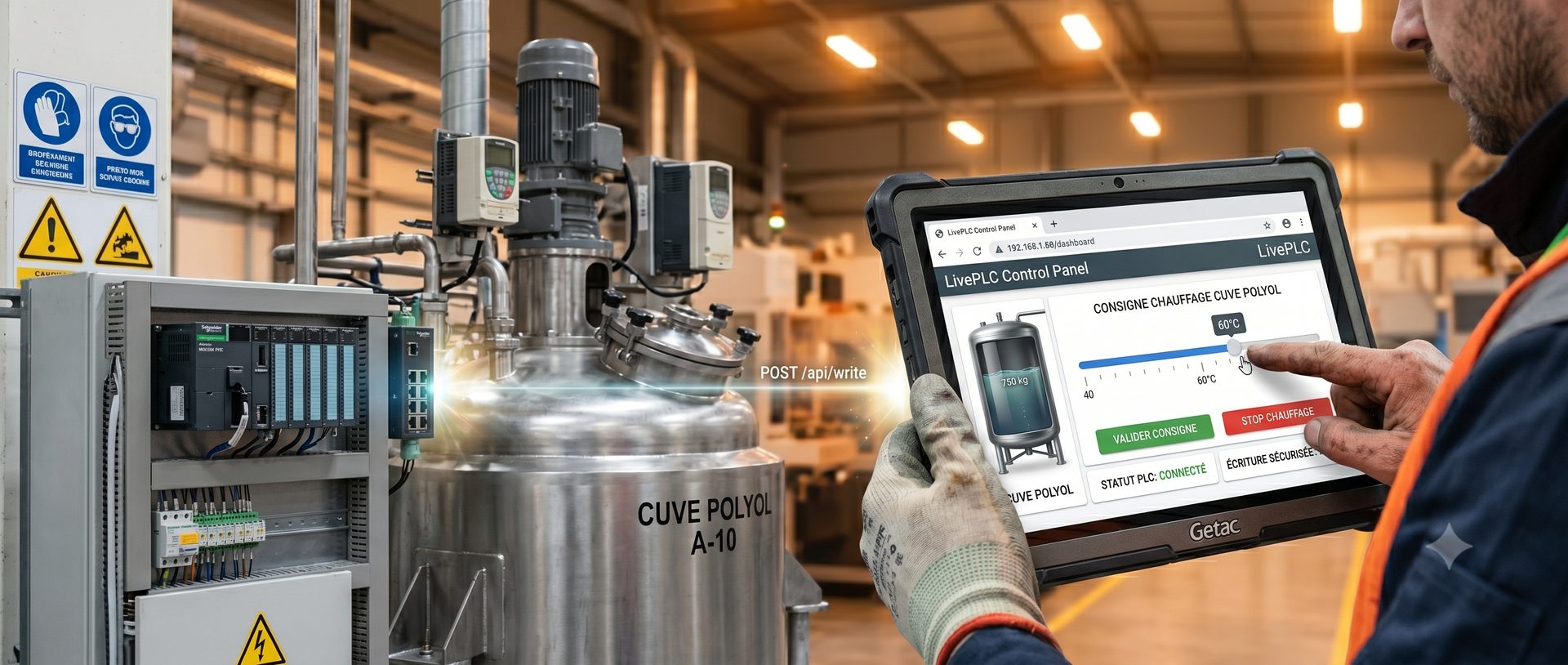
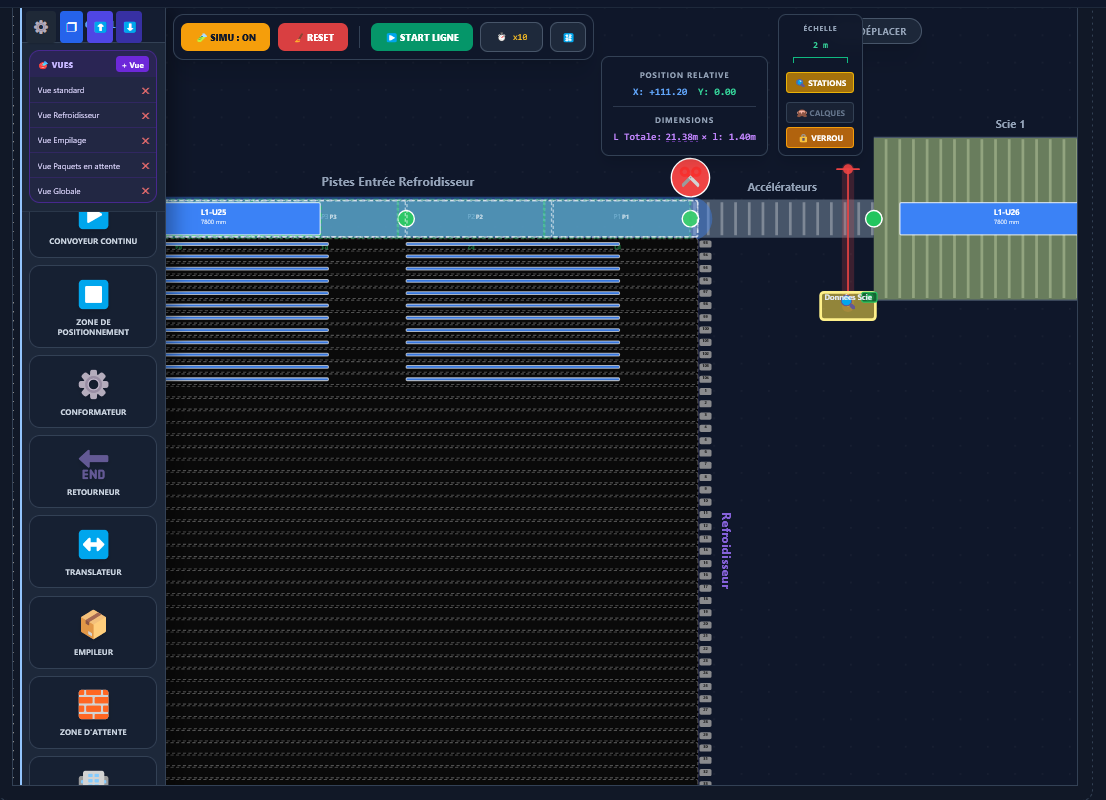
The idea became clear: what if I built a supervision interface as flexible as a website, connected directly to the PLCs, and accessible from any screen — including the smartphone in your pocket on the shop floor? If a workstation needs replacing, no more migration, no more spending hours reinstalling everything with a systems engineer. With this setup: a browser and a local web address, and you're back up and running!
The vision and action plan
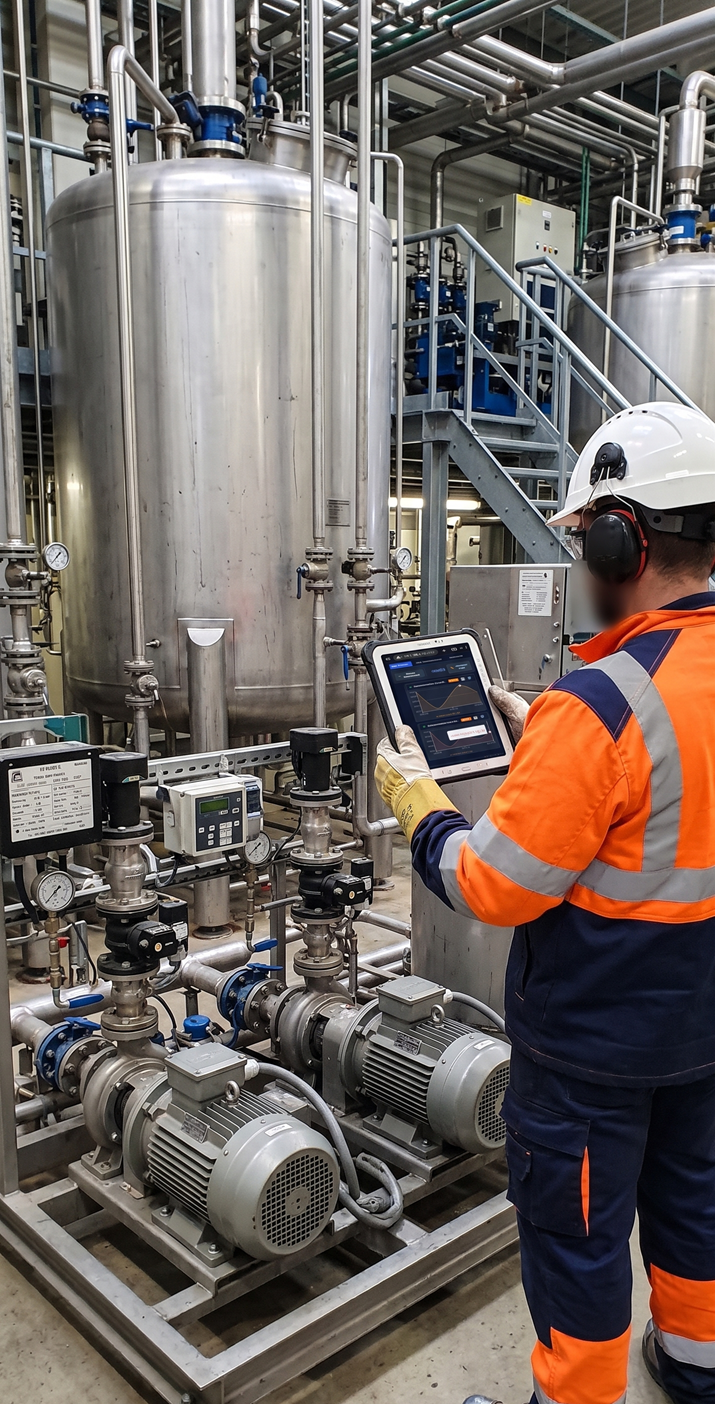
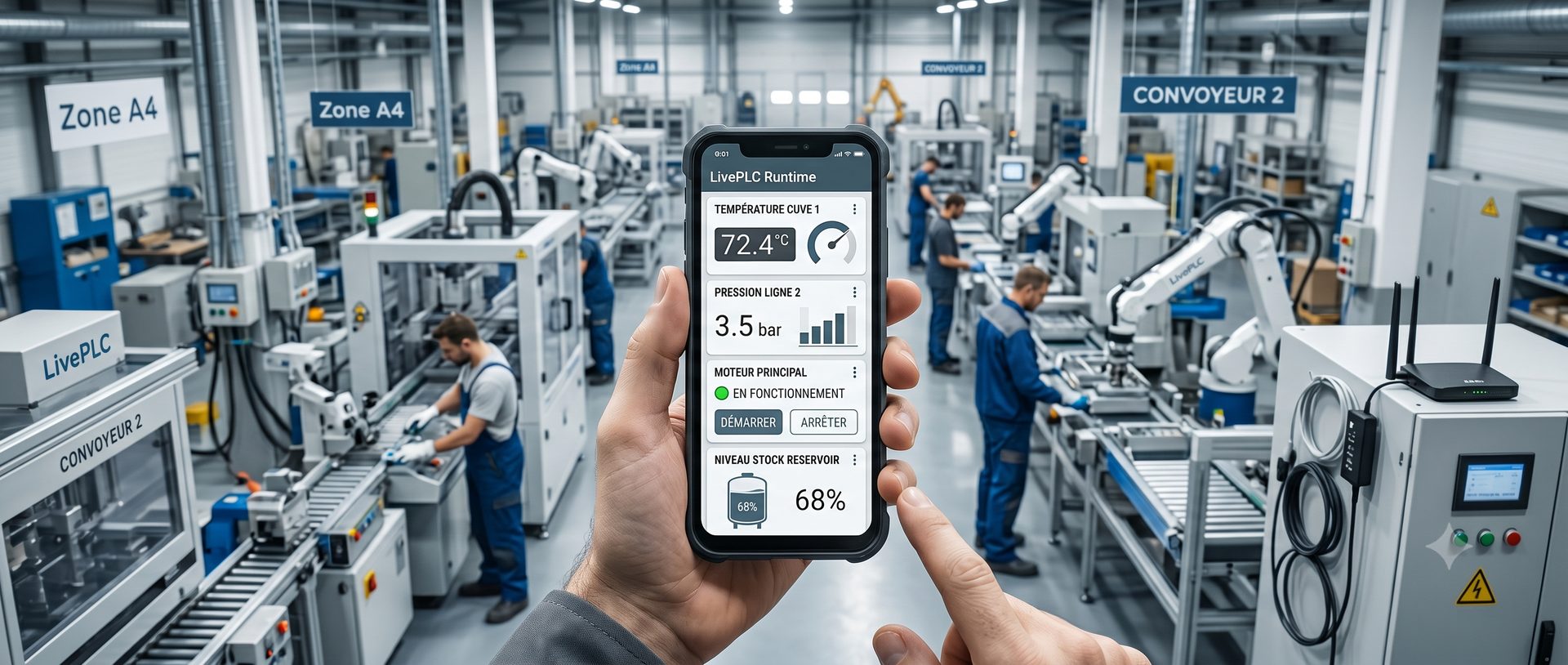
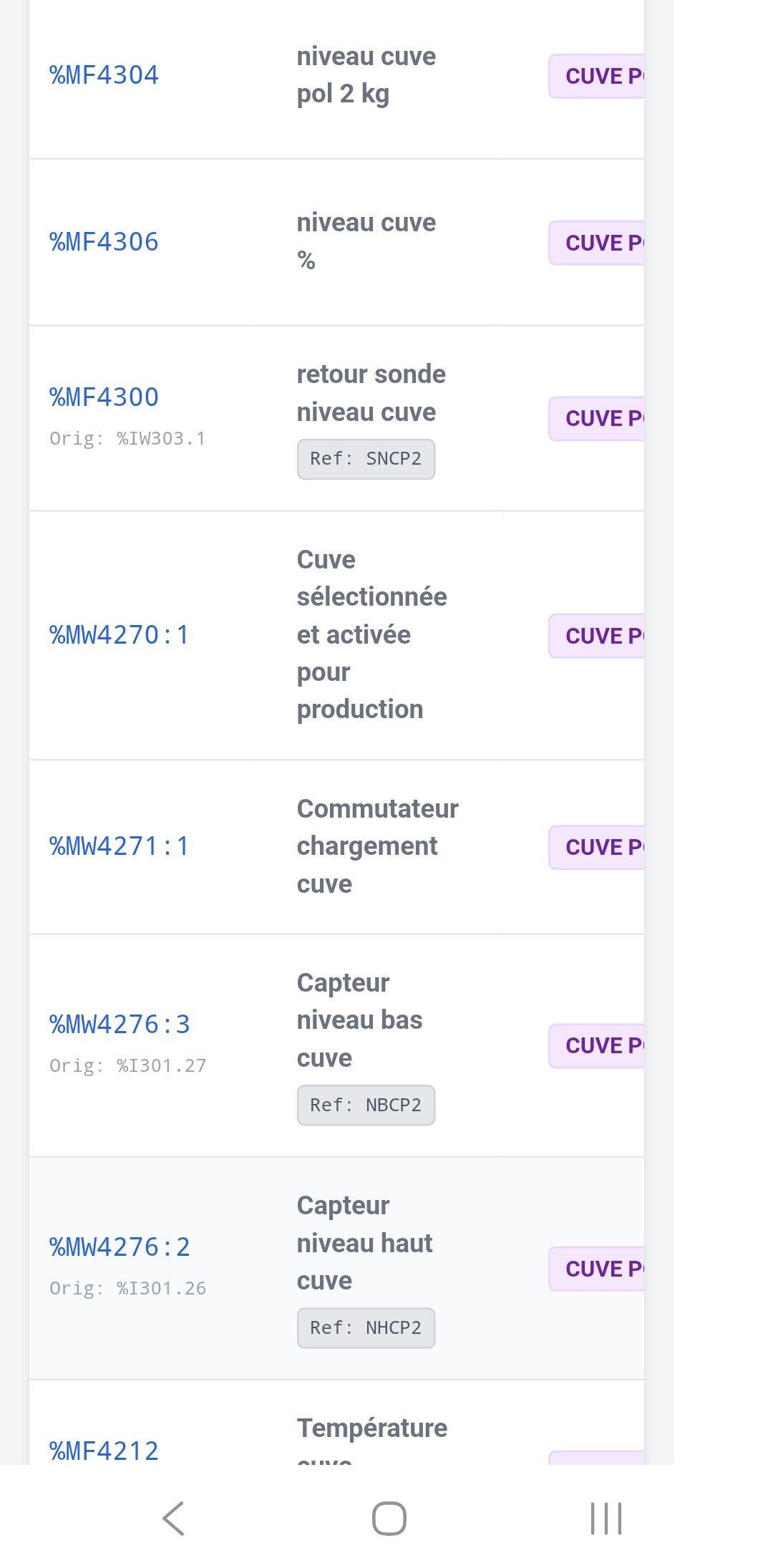
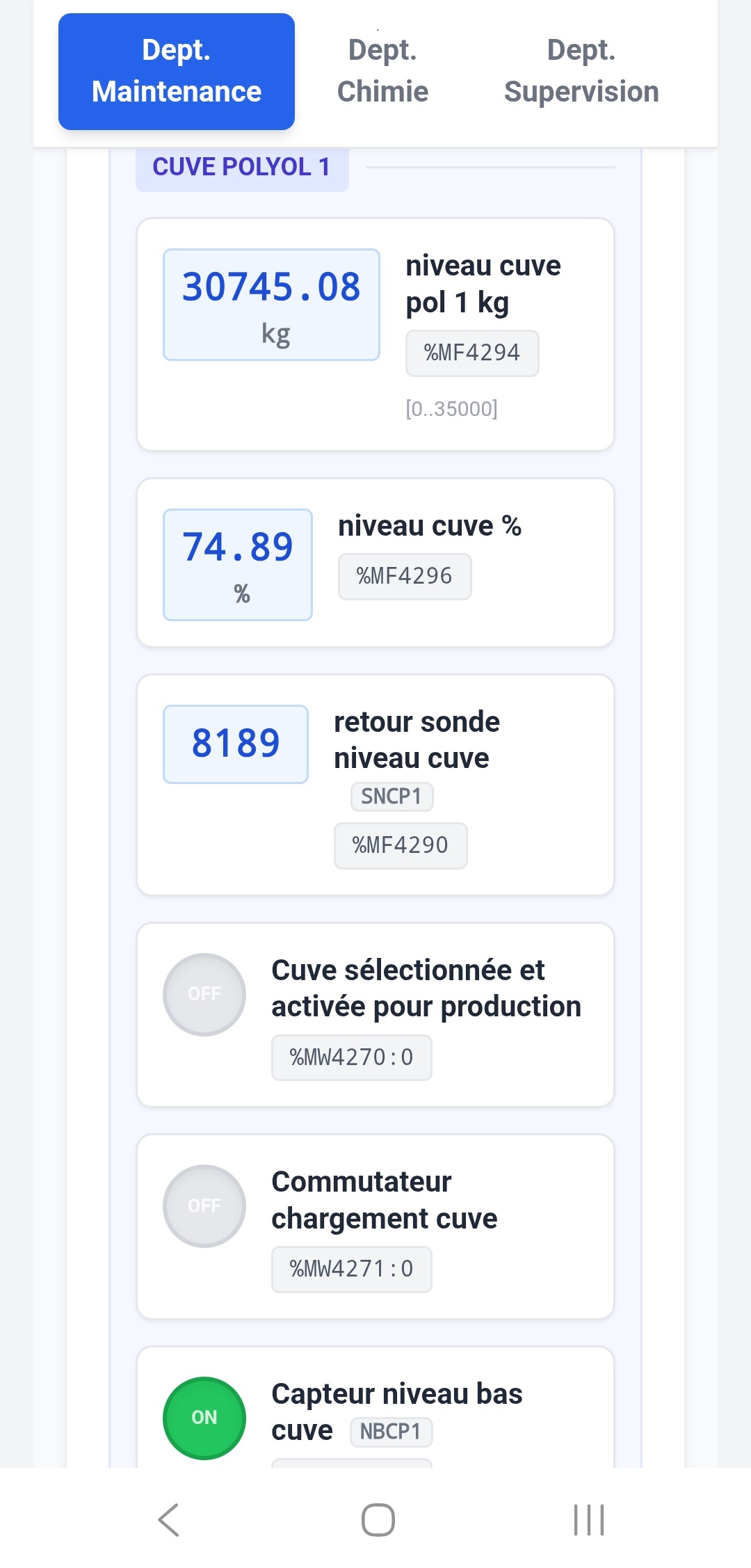
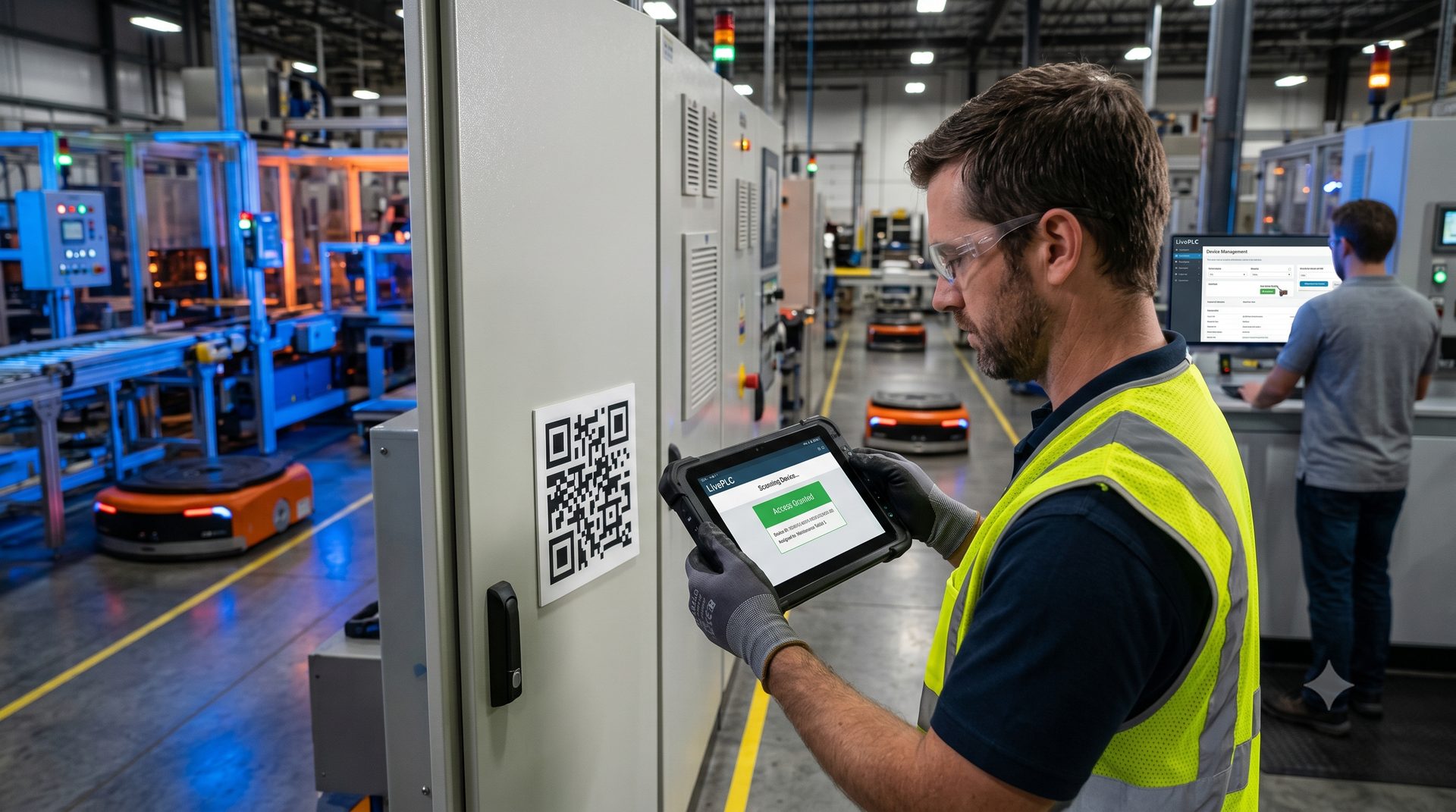
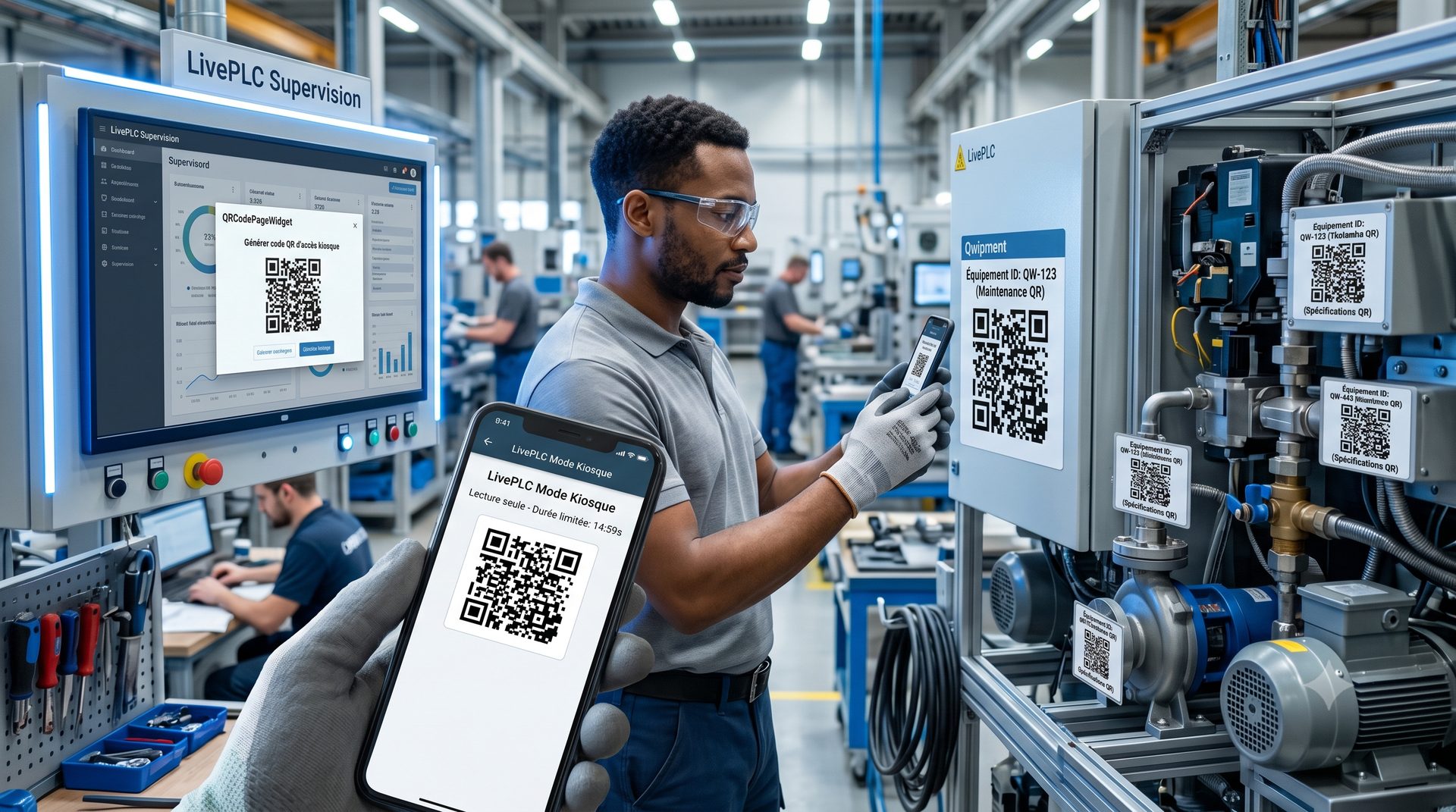
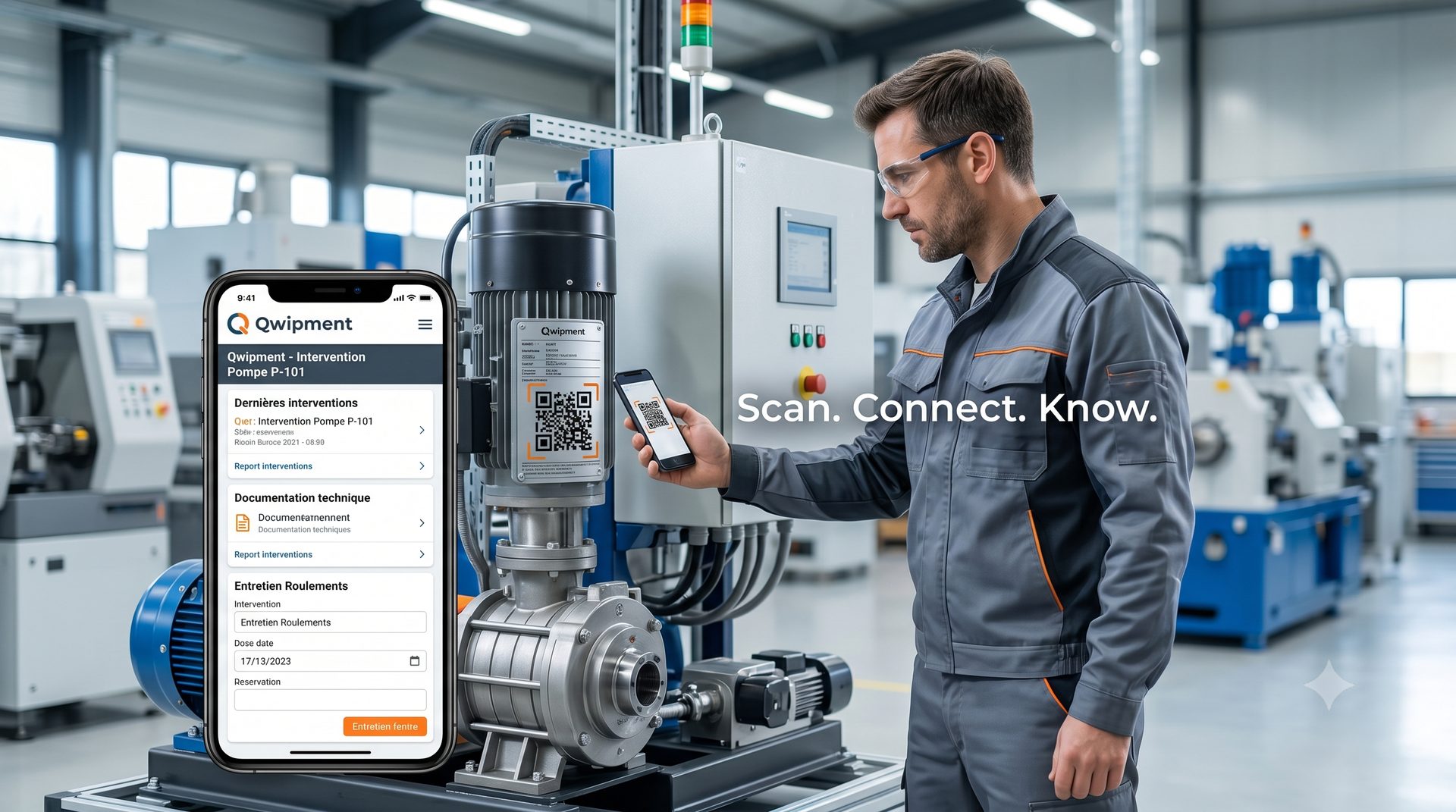
From the start, the core use case wasn't the large supervision screen in a control room. It was the maintenance technician moving along the line. When you're under a conveyor, inside an electrical cabinet, 50 metres from the control screen, being able to pull out your smartphone or tablet to check a sensor value or a drive status is a real time-saver.
Constraints set from the start
- Zero thick client: everything runs from a standard browser, including on smartphones.
- Simultaneous multi-user: the Maintenance Manager from their office, the Technician from the shop floor.
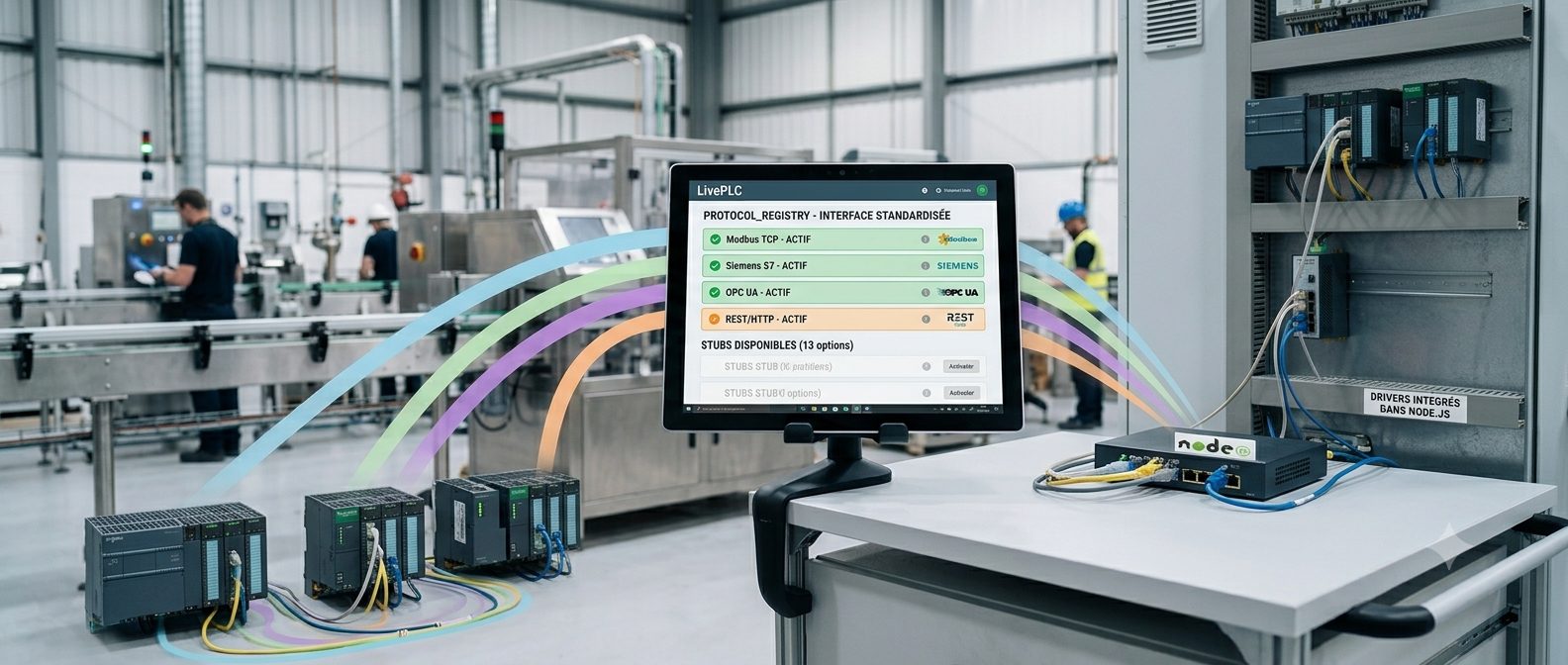
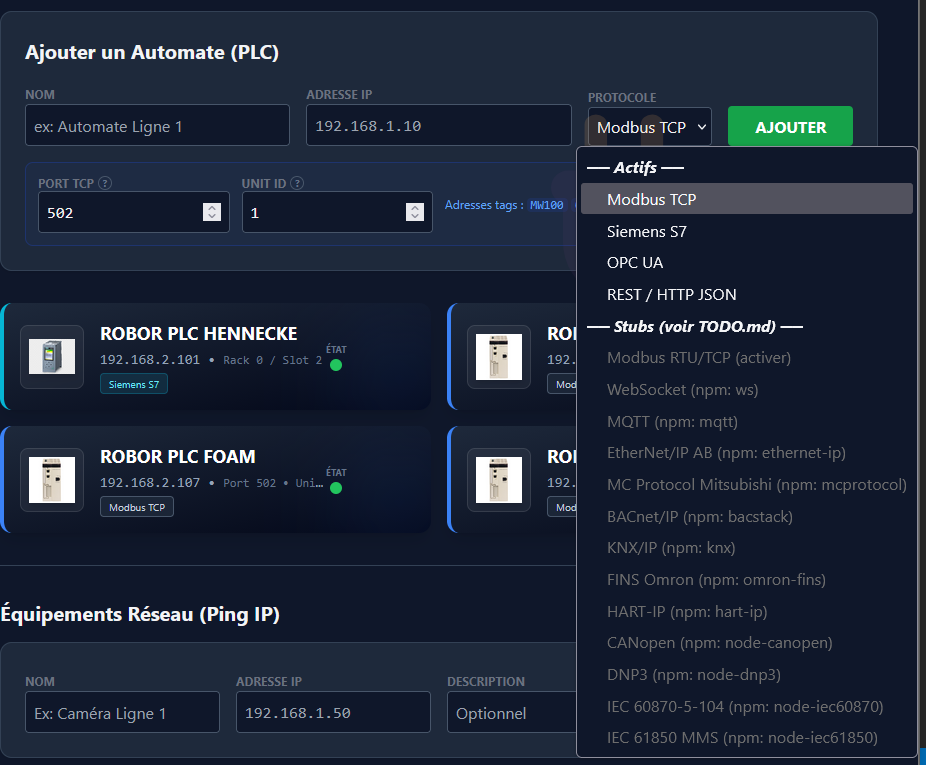
- Multi-protocol: Modbus TCP, Siemens S7, OPC UA — real PLCs, not just the latest models.
- Deployable on modest hardware: Raspberry Pi 4, NUC, or shared VM for the backend — a smartphone or any browser for the frontend, and why not for the backend too for lightweight installations.
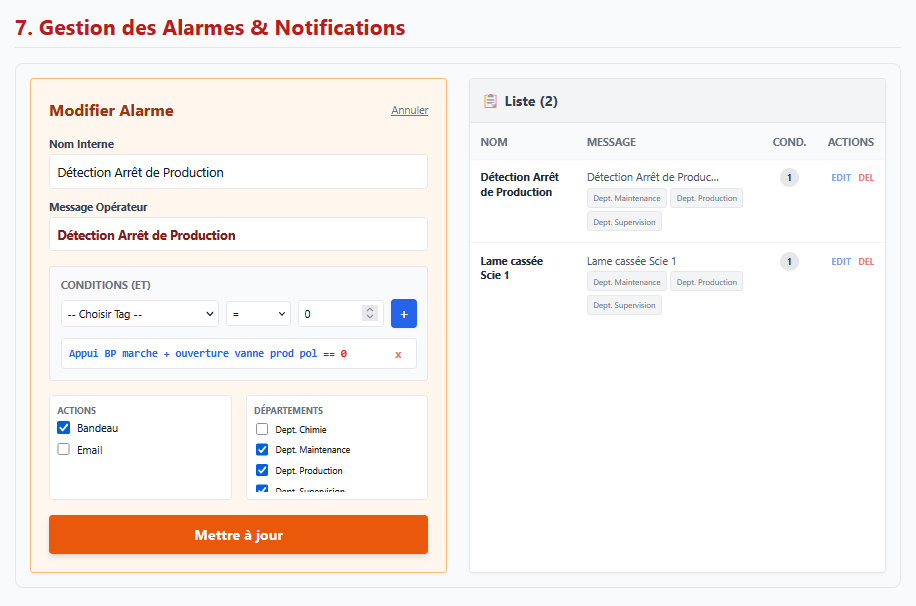
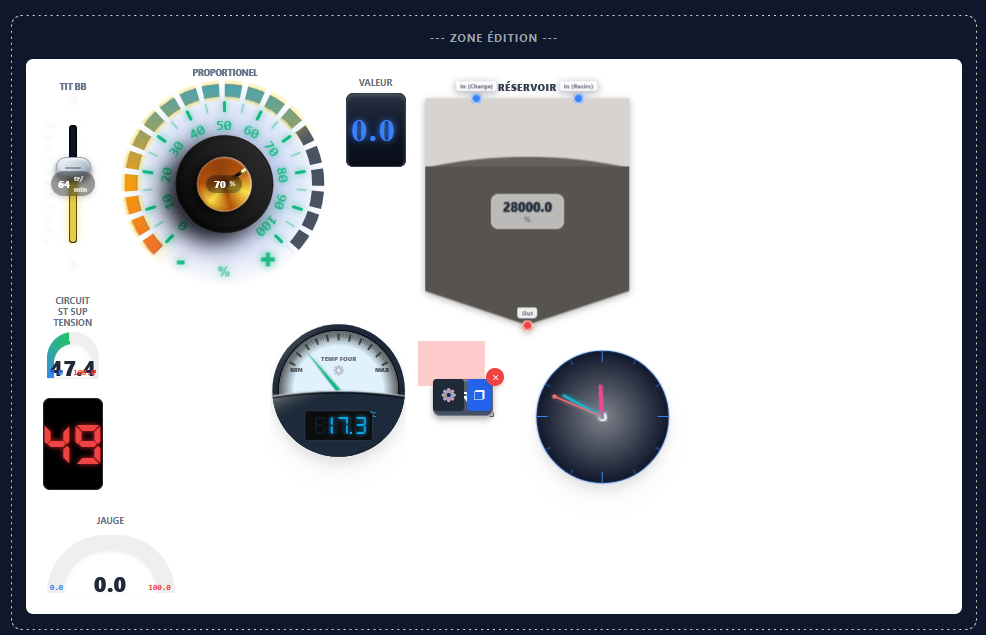
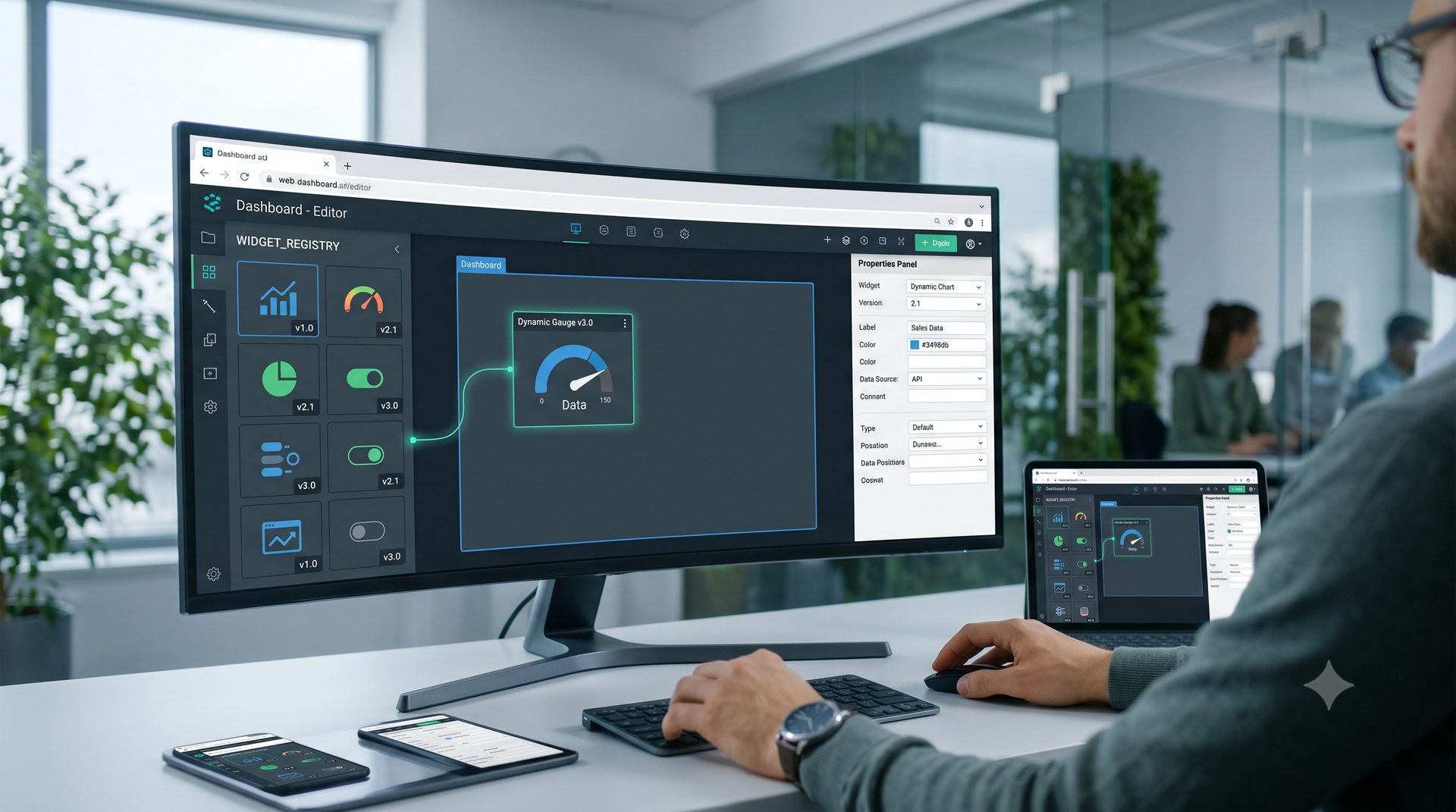
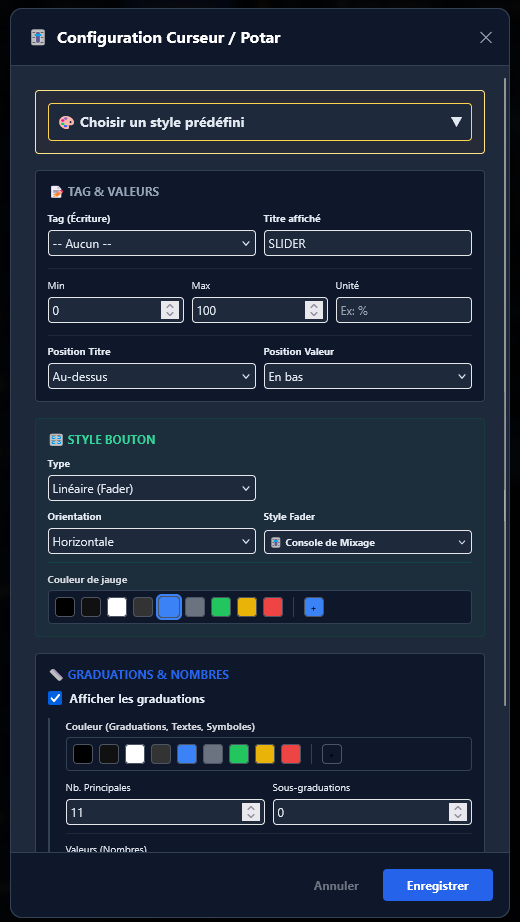
- Quick onboarding: make page creation and modification as simple as possible, quickly generate and visualise PLC values.
- Fast installation: a server centralising all data and a client workstation with nothing more than a web browser. When troubleshooting a client station, nothing is faster.
Choosing the tech stack
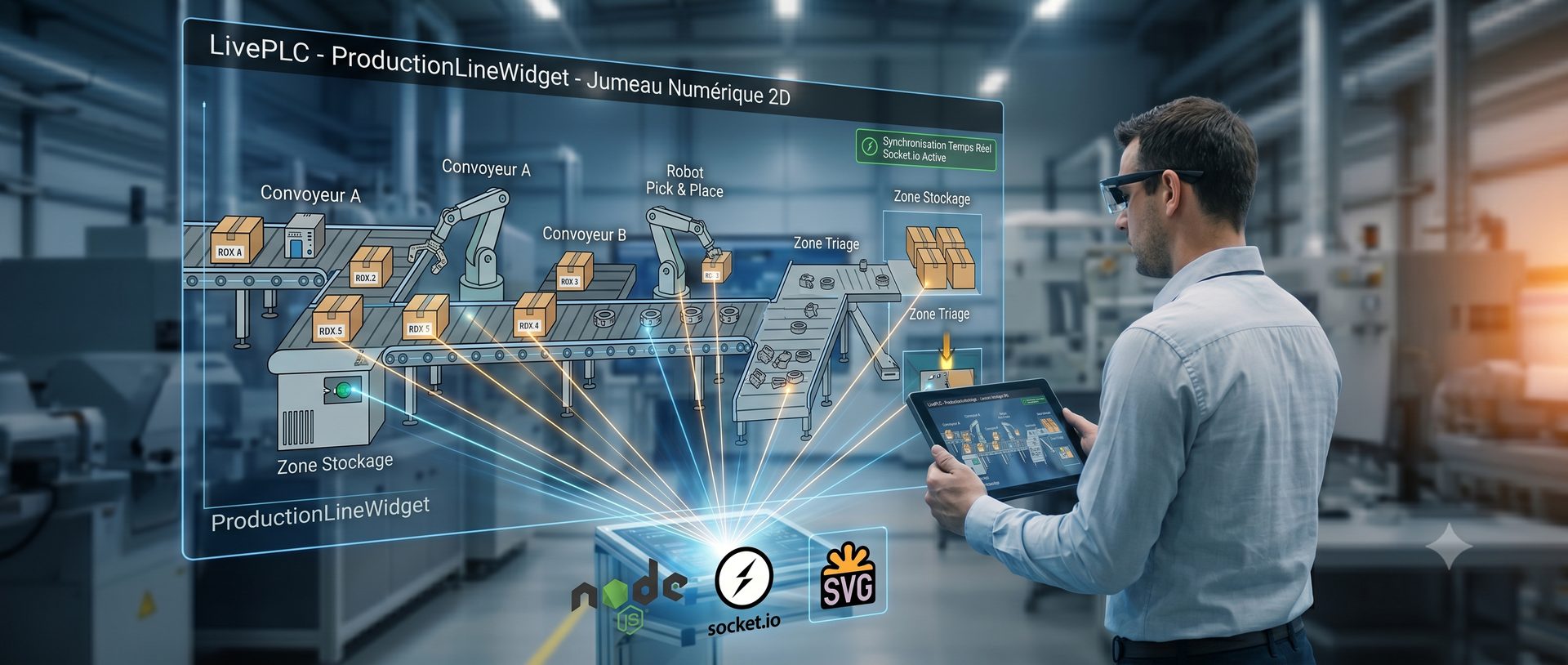
Node.js + Express for the backend — the npm ecosystem has libraries for Modbus (jsmodbus), S7 (nodes7), OPC UA (node-opcua), and Socket.io is right at home for real-time.
React 19 + Vite + TailwindCSS for the frontend. React for state management and the component system. TailwindCSS because I didn't want to waste time on CSS for dozens of different widgets. SQLite embedded for day-to-day persistence — the goal being primarily visualisation and control, not archiving — and later InfluxDB for data history if the need arises.